Program settings
You can open the program settings dialog box either by selecting the menu item File->Options or by pressing F4.
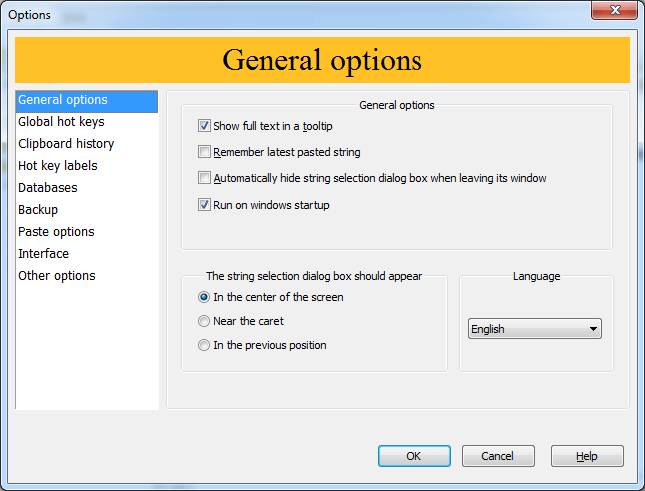
The "General" tab
"Show the full text in a tooltips" - The dialog box for selecting the string to be inserted will contain a hint with the full text being inserted to the right from the selected string. This feature may come in handy if you have a lot of strings and sometimes you fail to remember the full text based on the short string.
"Remember latest pasted string" - If you clear this checkbox, each time you open the String Selection dialog box, the first string will be selected and all folder will be collapsed. Otherwise Flashpaste will remember the string you pasted last and automatically make it current.
"Automatically hide String Selection Dialog Box when leaving its window" - If you open the String Selection dialog box and change you mind, you may skip closing the dialog box, but just switch to another window. The String Selection dialog box will be closed automatically.
"Show Caption Area in String Selection Dialog Box" - The String Selection dialog box can have a title bar (good for dragging it on the screen) or it can have none. Select the option that you like better. You can also use F12 to switch between the modes right from the String Selection dialog box.
Checking the "Run on Windows startup" checkbox will enable or disable running Flashpaste automatically when Windows starts.
You can also choose the program interface language using the corresponding dropdown list.
The "Hot Keys" tab
"Main Hot Key" - You can specify a hot key to open the dialog box for selecting the line to be inserted. Double-pressing the hot key will open the main program window.
"Hot Key for quick pasting the string pasted last" - pasting the last pasted text without opening the String Selection dialog box. If you need to paste one and the same string several times, there is no more need to open the String Selection dialog box each time. Open it only once and then you can use this feature.
Main Hot Key opens main window in String Selection dialog (if unchecked all folders are collapsed and root focused) - By default, pressing the main hotkey in the string selection dialog opens the main program window. If you prefer to use the hotkey for minimizing all open folders and quickly move the selection to the first line in the tree, clear this checkbox.
"Icon in systray" - When you launch Flashpaste, it can place its icon in the system tray area (next to the clock). If you click it with the left mouse button, the String Selection dialog box will appear on the screen. If you right-click it, the menu will appear. If you think that there is no need for the program to place its icon in the systray, clear this checkbox.
The "Clipboard History" tab
"Enable Clipboard History" - Enables recording the clipboard history.
"Clipboard History Folder on top(otherwise on bottom)" - If selected, the clipboard history folder will be the first one in the line selection tree. If cleared, it will be the last one.
If you have problems with copying data in Microsoft Word\Excel when Flashpaste is running, it makes sense to disable the clipboard history for these applications by selecting the corresponding checkboxes in the settings of Flashpaste (F4). Unfortunately, we cannot find a mechanism that would work correctly with the clipboard in Microsoft Office applications so far.
Other pages
Information about options on other tabs is available in the corresponding sections:Hot Key Labels, Databases, Backup and Paste Options.